
Password recovery
Launcher Forge has two separate password recovery flows:Launcher player account
Uses a temporary OTP code sent by email.
Developer dashboard account
Uses a password reset link containing a temporary token.
Launcher player account
Players recover their password directly from the launcher.1
Request a recovery code
Enter the email address registered in the launcher and select Send code.
2
Check the email
Launcher Forge sends a temporary OTP recovery code.
3
Enter the code and new password
Paste the recovery code, enter the new password, and select Reset password.
4
Return to sign-in
After the password is updated, Launcher Forge sends a confirmation email and the player can sign in with the new password.
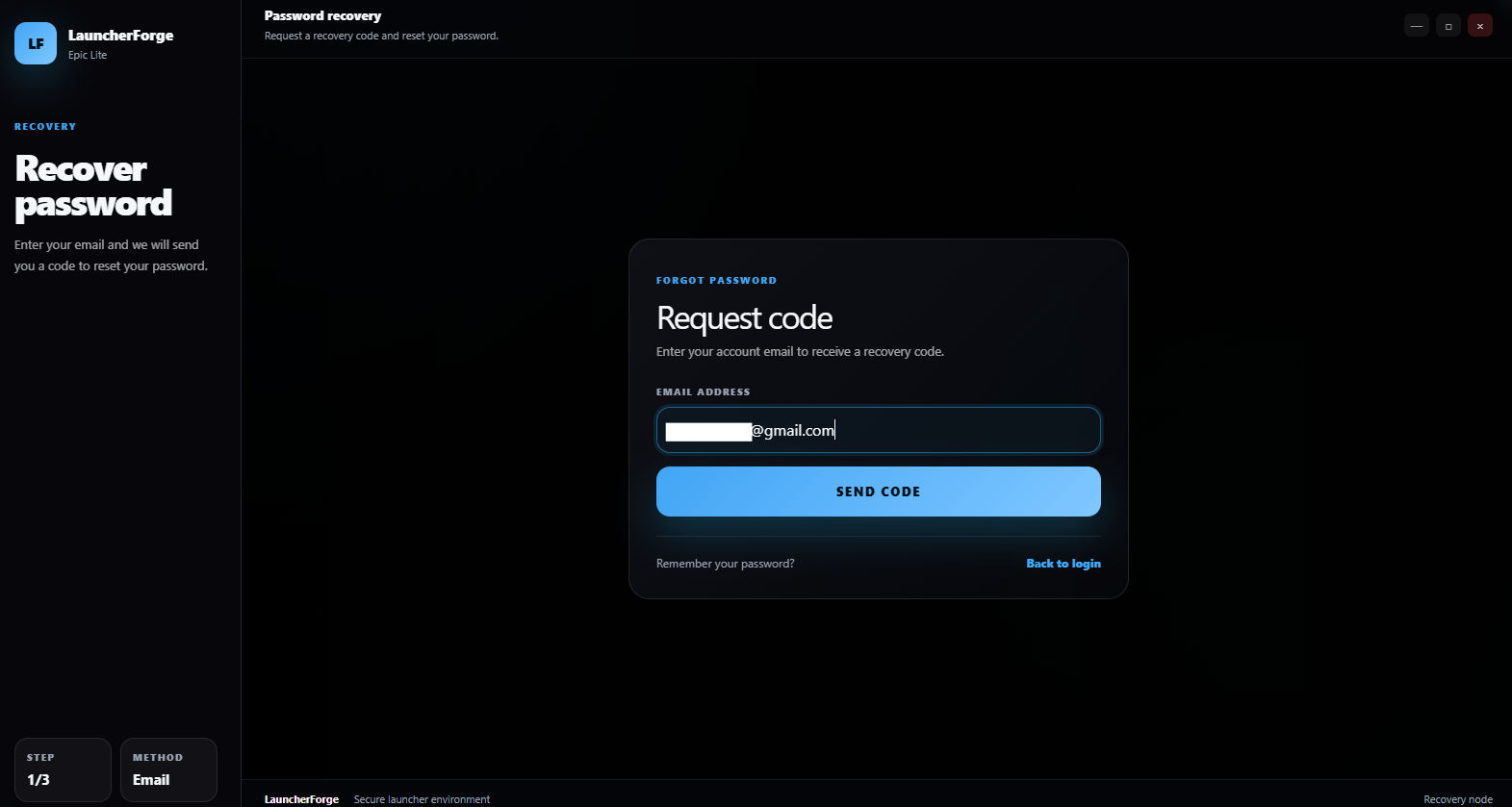
Request a password recovery code from the launcher
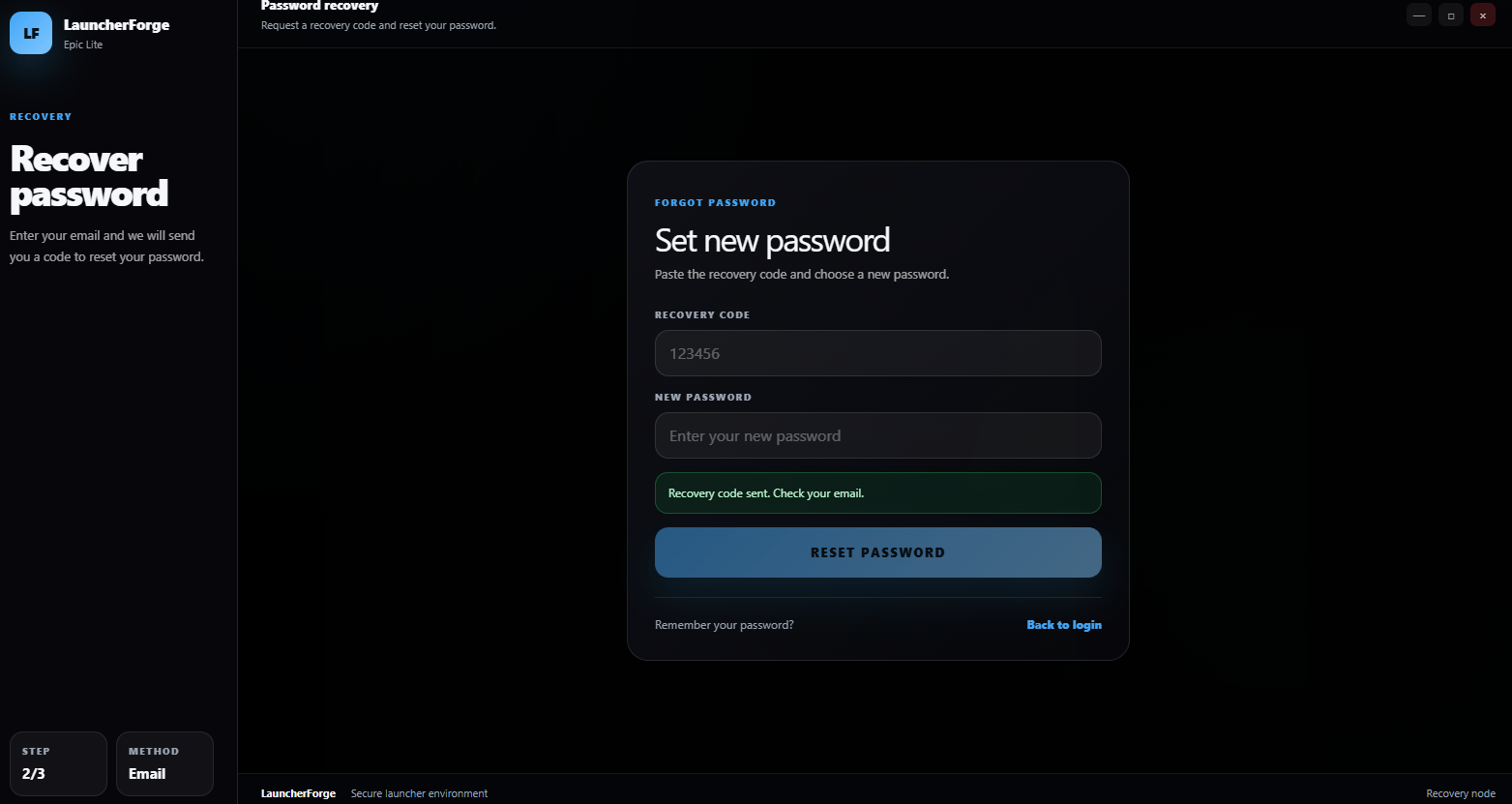
Enter the OTP code and define the new password
Developer dashboard account
Developer accounts use a different recovery process.1
Request reset instructions
Enter the developer account email and select Send instructions.
2
Open the reset email
Launcher Forge sends a password reset link containing a temporary token.
3
Set a new password
Open the link, enter and confirm the new password, and save it.
4
Sign in again
After the password is updated, Launcher Forge sends a confirmation email.
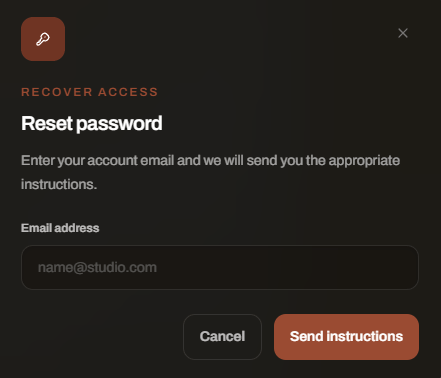
Request developer dashboard password reset instructions
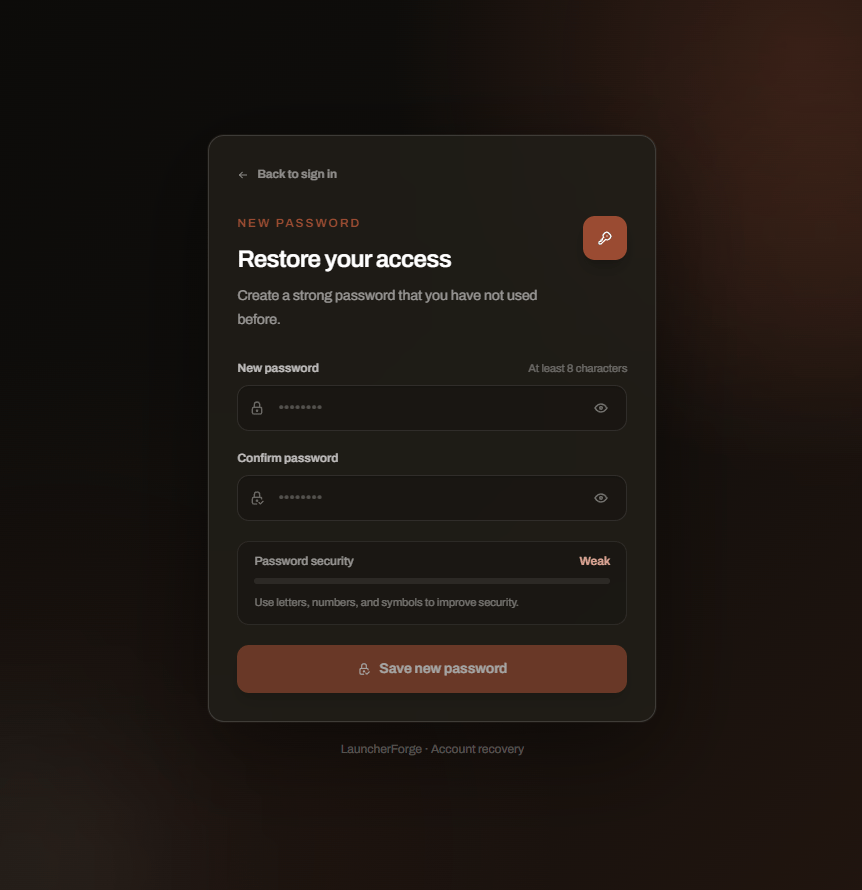
Set a new developer account password
The launcher OTP flow and the developer dashboard reset-link flow are separate. Use the recovery option for the account type you are trying to access.