
Game keys
Game keys grant access to games configured to require a key inside the launcher. They are useful for:- Paid games.
- Private testing.
- Promotional campaigns.
- Giveaways.
- Press access.
- Controlled distributions.
Before generating keys
Confirm that:- The game exists in the Catalog.
- The game is published.
- The game is linked to the launcher.
- Key was enabled when linking the game.
- The workspace plan allows key generation.
- The game has a build available for distribution.
Free access
Leave Key disabled when linking the game.End users can acquire the game without entering a CD key.
Key-protected access
Enable Key before linking the game.End users must redeem a valid key before the game becomes available in their library.
Enabling Key does not replace end-user authentication. Players still need to register or sign in to the launcher before redeeming a key.
How the key flow works
1. Open CD Keys
Sign in to the Launcher Forge dashboard. In the left sidebar, select CD Keys. Then select the game for which you want to generate keys.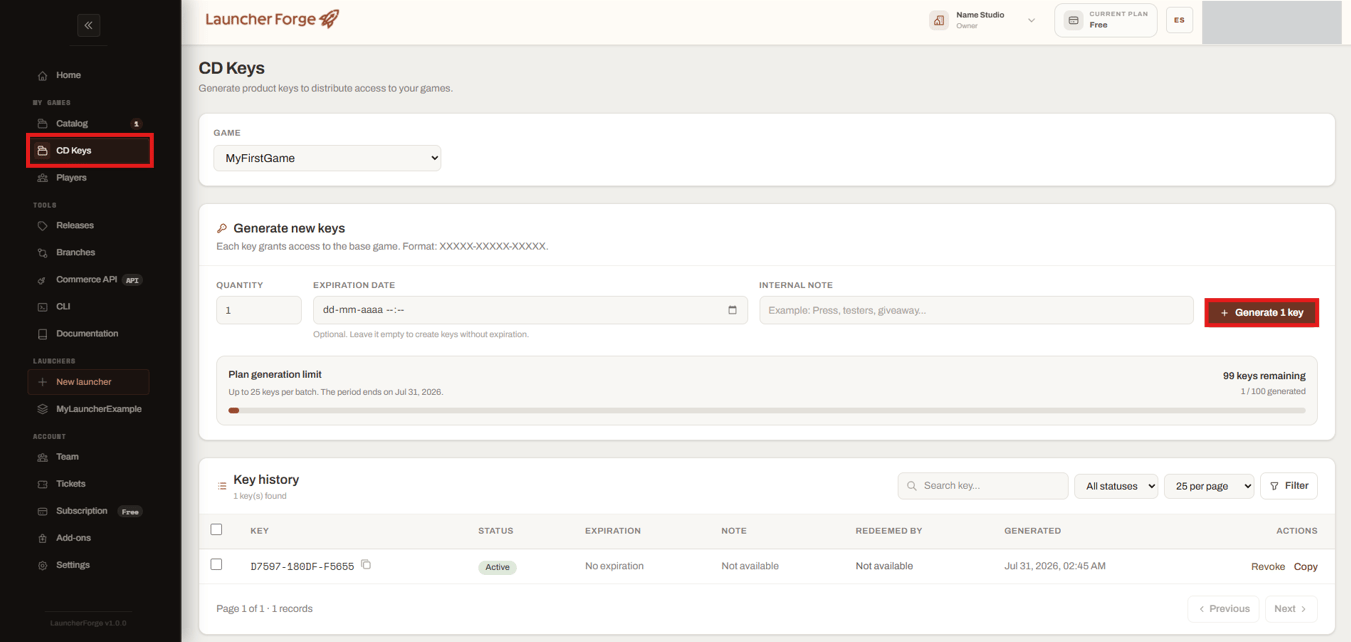
Open CD Keys and select the key-protected game
Only generate keys for games that were linked with the Key requirement enabled.
2. Choose the quantity
Enter the number of keys you want to generate. The generation limit depends on the active plan. The page shows:- Maximum keys allowed per batch.
- Number of keys already generated during the current period.
- Number of keys remaining.
- Date when the generation period resets.
3. Set an expiration date
The expiration date is optional. Leave the field empty to create keys without expiration. Set a date when the key should only be redeemable during a limited period. Examples:- Temporary playtests.
- Press review periods.
- Limited-time giveaways.
- Promotional campaigns.
The expiration date controls when the key can be redeemed. It does not remove a game that was already successfully added to a player’s library unless your access policy explicitly supports that behavior.
4. Add an internal note
Use the Internal note field to record the purpose of the batch. Examples:5. Generate the keys
Select Generate key or Generate keys, depending on the selected quantity. Launcher Forge creates the requested keys and opens the Generated keys dialog.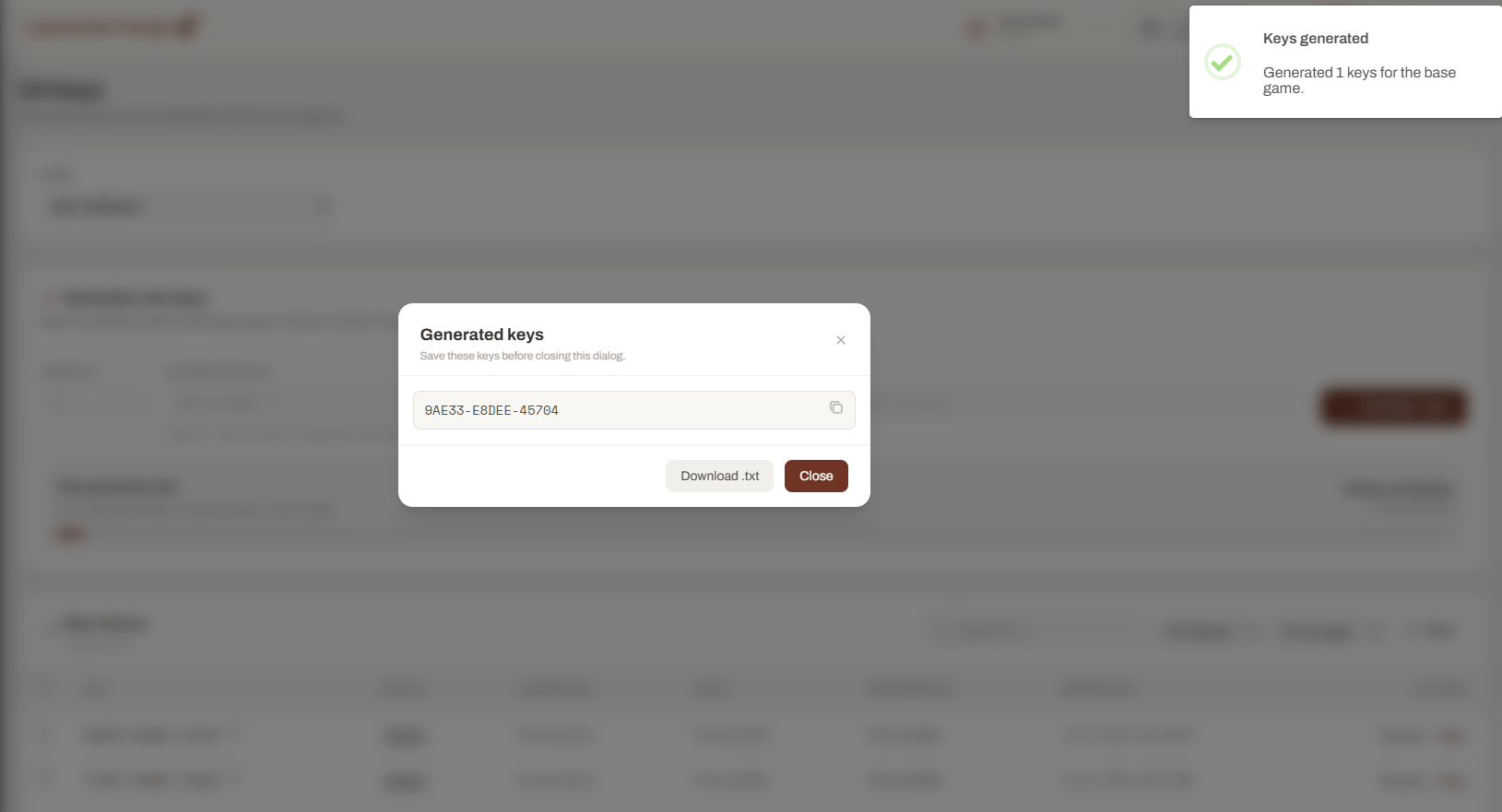
Save or download the newly generated keys
6. Store and distribute keys safely
You can distribute keys through:- Your official store.
- An email campaign.
- A private testing group.
- A partner portal.
- A giveaway platform.
- Your own commerce integration.
- Send each key only to its intended recipient.
- Avoid publishing complete active keys in public screenshots.
- Keep a record of the campaign or recipient group.
- Use expiration dates for temporary access.
- Revoke leaked or compromised keys.
7. Review key history
The Key history table shows the generated keys for the selected game. Available information can include:
Use the search field and status filters to locate specific keys.
The number of rows displayed per page can also be adjusted.
Key statuses
A key can move through different states.The exact status labels displayed by the dashboard may depend on the current key state and available filters.
8. Copy a key
Use Copy to copy a key from the history table. Be careful when pasting it into:- Support conversations.
- Emails.
- Test documents.
- Public issue trackers.
- Screenshots.
9. Revoke a key
Use Revoke when a key should no longer grant access. Common reasons include:- The key was exposed publicly.
- It was sent to the wrong recipient.
- A campaign was cancelled.
- A testing invitation was withdrawn.
- The key should no longer be redeemable.
Player redemption flow
For a key-protected game, the end-user flow is:- Register or sign in to the launcher.
- Open the key redemption interface.
- Enter the CD key.
- Submit the key.
- Launcher Forge validates its status.
- The game is added to the player’s library.
- The player can download and install the game.
- Invalid.
- Expired.
- Revoked.
- Already redeemed, when keys are single-use.
- Associated with another game.
- Entered in an incorrect format.
Key protection and launch tokens
Game keys and launch tokens have different responsibilities.Game keys
Control whether an end user can add a key-protected game to their library.
Launch tokens
Validate the technical startup connection between the launcher and the game runtime.
Recommended checklist
Before distributing keys, verify:- Key access was enabled before linking the game.
- The correct game is selected.
- The quantity is correct.
- The expiration date is correct or intentionally empty.
- The internal note identifies the batch.
- The generated keys were copied or downloaded.
- Active keys are stored securely.
- The redemption flow works in the launcher.
- Invalid and revoked keys are rejected.
- The game appears in the library after successful redemption.
Your key distribution flow is ready when a valid key grants access to the correct game and invalid, expired, or revoked keys are rejected.
Related guides
Test your launcher
Test free acquisition, key redemption, download, installation, and game startup.
Launch tokens
Configure the validation connection between the launcher and the game.