
Unity integration
LauncherForge Launch Authentication validates whether a Unity build was started from an authorized Launcher Forge session. The integration can be used to restrict access to the game or specific features until the backend confirms the connection between the launcher and the executable.Understand launch tokens
Review how Launcher Forge automatically generates and validates the temporary credential used when starting the game.
The temporary credential is generated and delivered automatically by Launcher Forge. It must not be entered manually or used as a testing method.Pressing Play inside the Unity Editor or running the build directly does not reproduce a real authentication flow.
How it works
Requirements
Before you begin, confirm that:- The game exists and is published in Launcher Forge.
- The game is linked to the launcher.
- You are using a Unity version compatible with the package.
- The project can use local packages.
- You know the validation endpoint URL.
- The final test will be performed with a published build started through Launcher Forge.
Unity installation
Download LauncherForge Launch Authentication 1.0.2
Install the package
The package can be installed by copying it into the project or by selecting itspackage.json file through Unity Package Manager.
- Copy into Packages
- Package Manager
1
Extract the archive
Extract:
2
Rename the folder
The extracted folder is named:Rename it exactly to:
3
Copy the package into the project
Place the folder inside
Packages:4
Verify the structure
The package must contain:
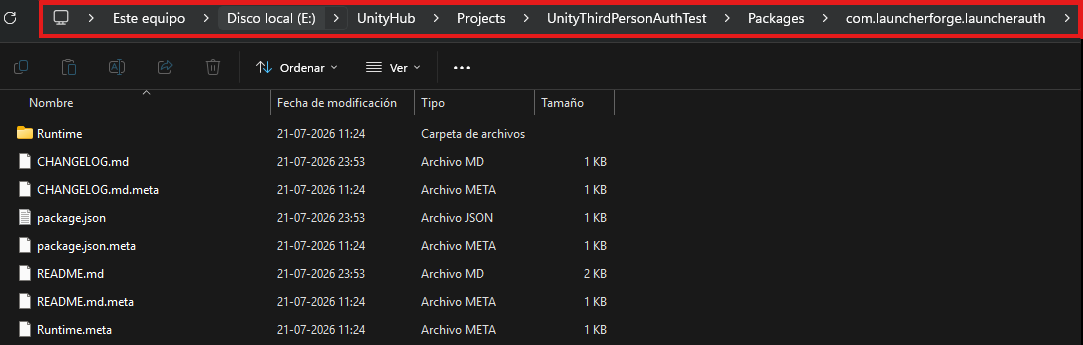
Package copied into the Packages folder
Create the configuration
The package automatically loads its configuration fromResources.
1
Create the Resources folder
Inside
Assets, create:2
Create Launcher Auth Settings
Inside
Resources, use:3
Use the exact name
The asset must be named:
4
Verify the final path
The asset must be located at:
Configure the backend
Select:string
Full URL of the validation endpoint.
float
Time the package waits before starting validation.
float
Maximum amount of time allowed for the HTTP request.
The package builds this request automatically. You do not need to send it from another script or ask the player to enter a credential.
Automatic initialization
Do not manually add the package to aGameObject.
When the game starts, the package automatically creates:
Available states
Import the namespace:Successful authentication
After successful validation, the user is available through:string:
string
Authenticated identifier returned by the backend.
string
Email associated with the validated session.
boolean
Confirms that the credential was accepted.
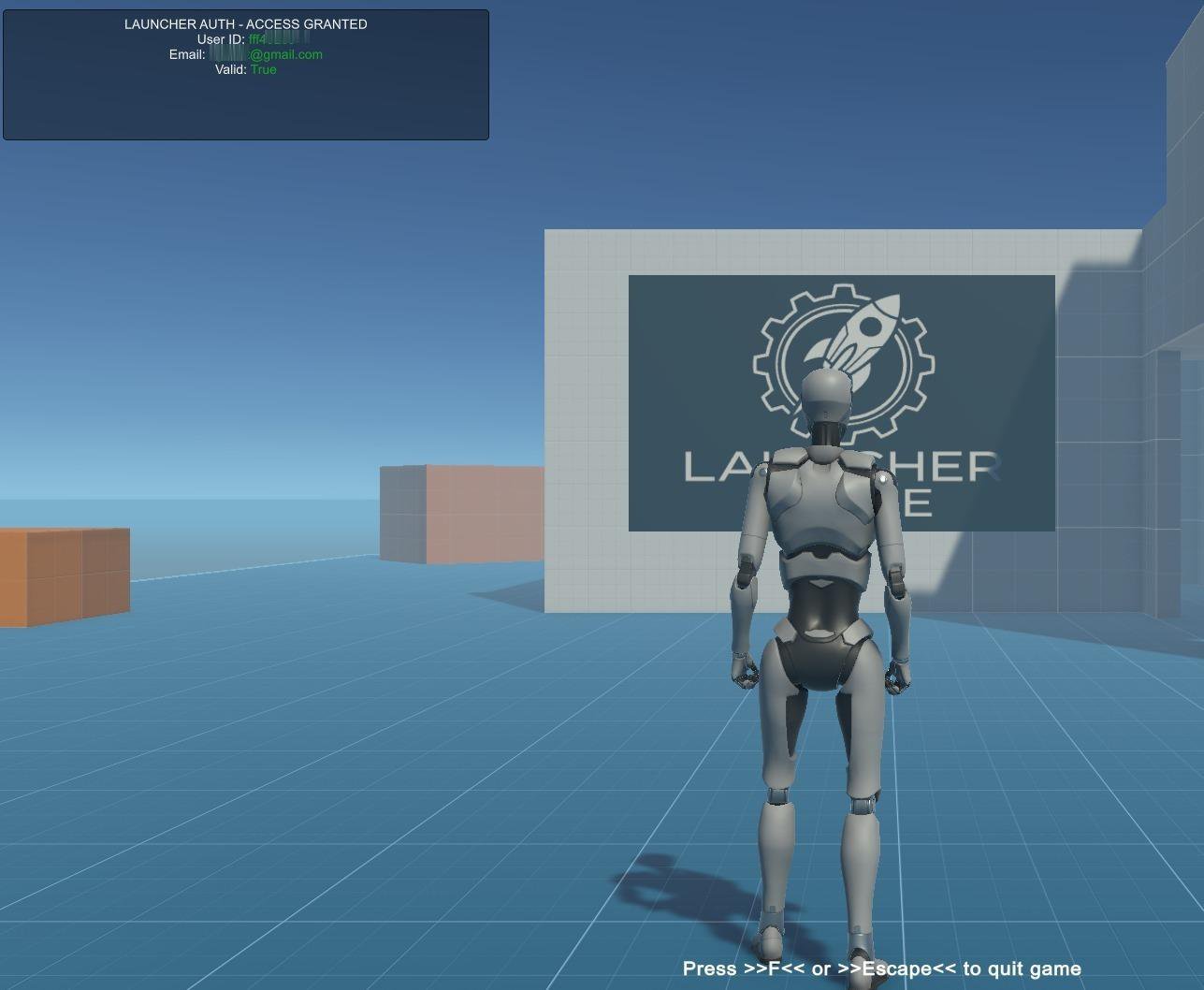
Successful authentication in a build started through Launcher Forge
Check the current result
You can inspect the session state from any script that imports the namespace.Failed authentication
There is no property named: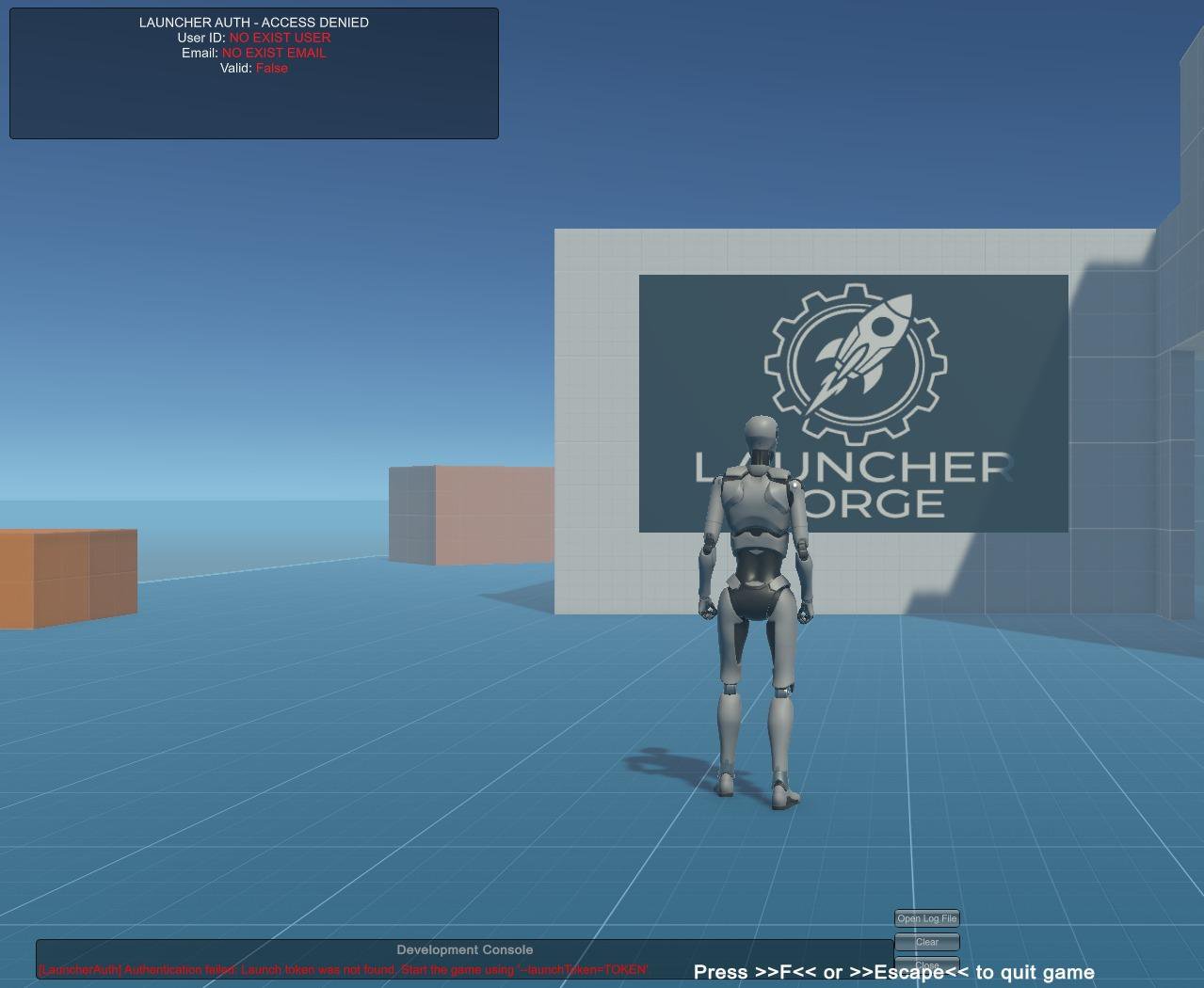
Expected result when the build was not started through Launcher Forge
Use authentication events
This is the recommended approach for a main menu or controller that must react as soon as validation finishes.EvaluateCurrentState() is important because authentication may have finished before the object subscribed to the events.Behavior inside the Unity Editor
When you press Play directly in the editor, the expected result is an access-denied state. This does not indicate a package error. It confirms that:- Automatic initialization worked.
- The package attempted to retrieve the launch credential.
- The editor did not receive a credential generated by Launcher Forge.
LauncherAuthSession.Statechanged toLauncherAuthState.Failed.- The error message became available through
LauncherAuthSession.LastError.
Test real authentication
To verify the complete integration:1
Create a Unity build
Compile the project with all files required to run it outside the editor.
2
Publish the build
Upload the version through Launcher Forge CLI.
3
Link the game
Confirm that the published game is associated with the correct launcher.
4
Install the game from the launcher
Use a player account with access to the game.
5
Start the build through Launcher Forge
The launcher will automatically generate and deliver the temporary credential.
6
Verify the result
The session should become authenticated and the
AuthenticationSucceeded event should run.Failed authentication result
Validation may fail because of:- Missing credential.
- Invalid credential.
- Expired credential.
- Backend unavailable.
- Timeout.
- Invalid JSON response.
valid == false.- Empty or missing
id.
The package does not close the game automatically. Your project decides whether to display an error, disable features, offer a close action, or continue with limited capabilities.
Troubleshooting
The package does not appear in Package Manager
The package does not appear in Package Manager
Confirm that:
- The folder is named
com.launcherforge.launcherauth. package.jsonis located at the package root.- You selected the correct file through Install package from disk.
- The Unity version is compatible.
LauncherAuthSettings does not load
LauncherAuthSettings does not load
Confirm the exact path and name:The asset must be named exactly
LauncherAuthSettings.The session remains Failed inside the Editor
The session remains Failed inside the Editor
This is the expected result. The editor does not receive a temporary credential from Launcher Forge, and there is no override for simulating one.Perform the final test with a published, linked build started through the launcher.
The backend does not respond
The backend does not respond
Review:
Backend Url.- Backend availability.
- HTTPS certificate.
Timeout Secondsvalue.- Build connectivity.
The build opens but does not authenticate
The build opens but does not authenticate
Confirm that:
- The build was published through the CLI.
- The game is linked to the correct launcher.
- The correct main executable was configured.
- The build was started through Launcher Forge.
- The configuration asset is included in
Resources.
License and sample project
Download UnityThirdPersonAuthTest
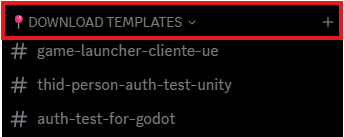
UnityThirdPersonAuthTest includes the package and a prepared integration for Unity 6 or another compatible version.Verification checklist
- The package is located at
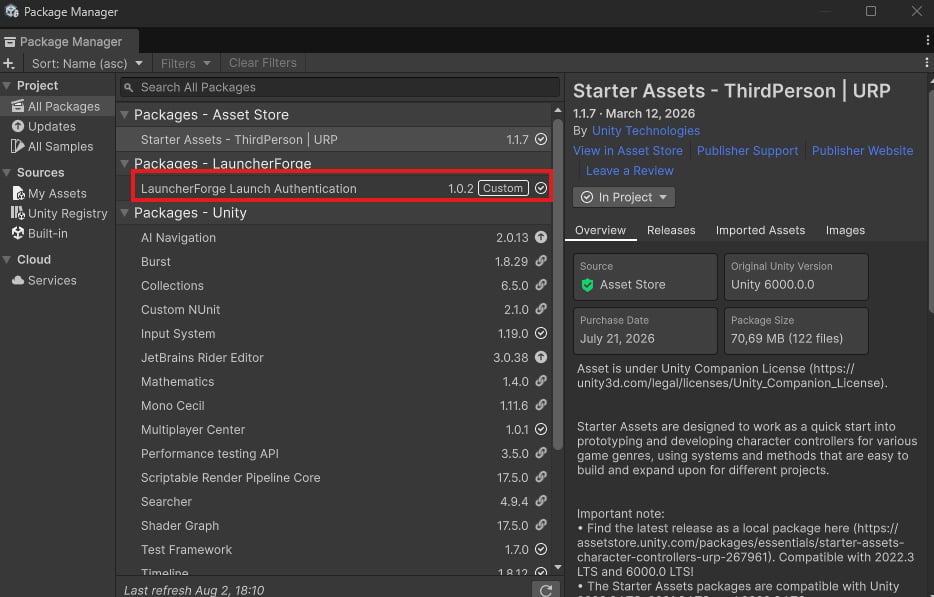
Packages/com.launcherforge.launcherauth. - Package Manager displays LauncherForge Launch Authentication.
Assets/Resources/LauncherAuthSettings.assetexists.Backend Urlcontains the full endpoint.Startup Delay Secondsis set to0.5.Timeout Secondsis set to10.- You did not add a manual bootstrap component to a GameObject.
- The code imports
LauncherForge.LauncherAuth. - The menu uses events or evaluates the current state.
- The project handles both
AuthenticatedandFailed. - You do not attempt to enter a credential manually.
- The final test is performed with a linked build started through Launcher Forge.
The integration is ready when a build started through Launcher Forge triggers
AuthenticationSucceeded, exposes id, email, and valid, and your game correctly handles the Failed state.Related guides
Launch tokens
Understand automatic validation between the launcher and the game.
Publish your first build
Publish the Unity build through the interactive CLI.
Test your launcher
Verify installation, download, and startup through Launcher Forge.