
Branches
Branches organize the builds and versions published for a game. They can represent different distribution channels, such as:mainstablebetaalphadevelopmentnightly- A private testing channel
A branch is a release channel.
STABLE, PATCH, and HOTFIX are build release types selected during CLI publishing; they are not branch visibility types.Public and private branches
Public branch
Available through the normal launcher distribution flow for players who have access to the game.Use public branches for production releases, public betas, demos, or other open channels.
Private branch
Visible and installable only by registered launcher players who were explicitly granted access.Use private branches for QA, closed betas, press previews, partner builds, and internal testing.
Private branch availability and limits depend on the active workspace plan.
How branches fit into the publishing flow
1. Open Branches
Sign in to the Launcher Forge dashboard. In the left sidebar, select Branches. Launcher Forge displays the games available in the workspace. Select the game you want to manage.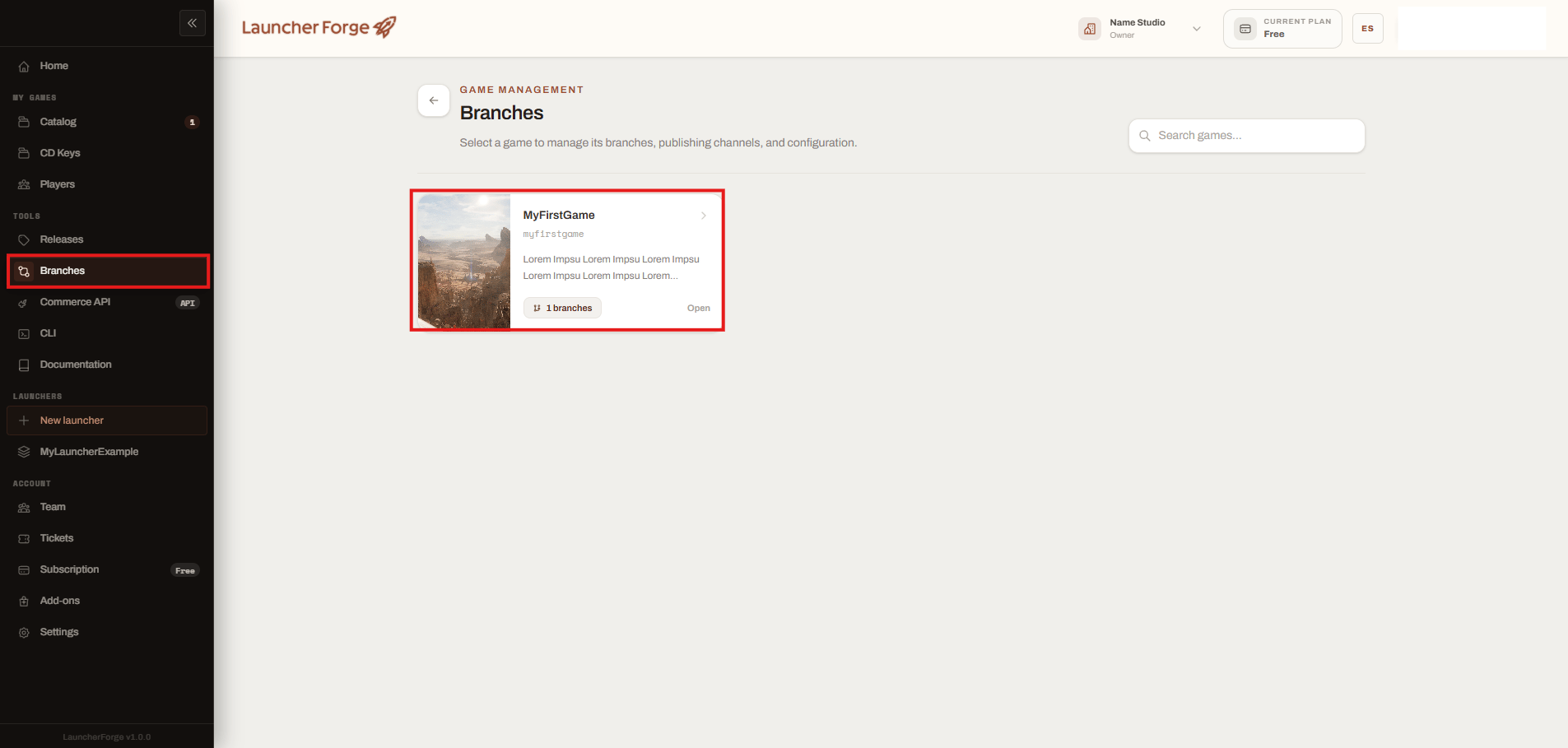
Open Branches and select a game
- Cover image.
- Game name.
- Slug.
- Description.
- Current branch count.
2. Review the branch overview
After opening the game, Launcher Forge displays its branch and build summary.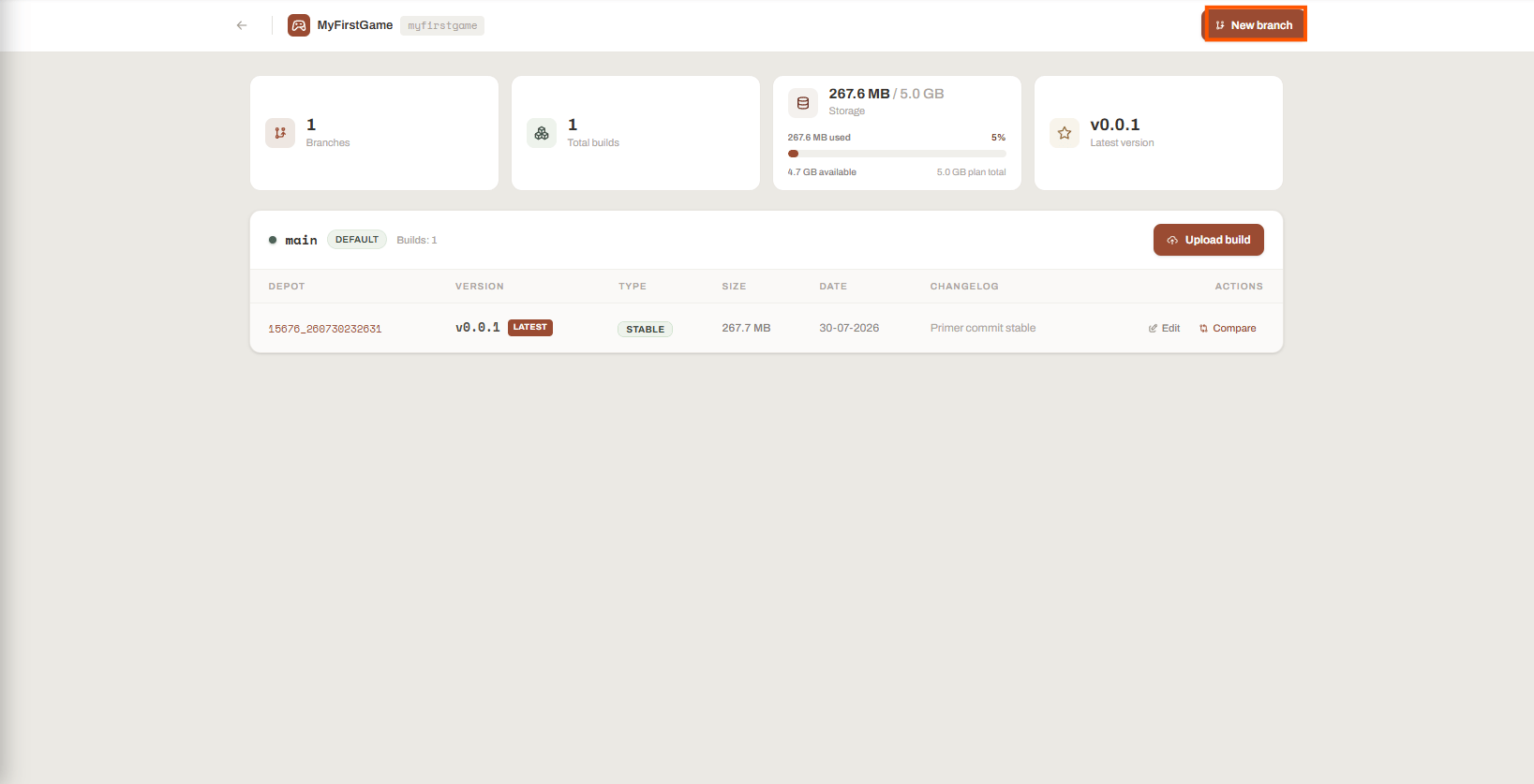
Review branches, builds, storage, and the latest version
Each branch section can display:
- Branch name.
- Visibility or default status.
- Number of builds.
- Depot identifier.
- Version.
- Release type.
- Build size.
- Publication date.
- Changelog.
- Available actions.
Default branch
A game normally begins with a default branch such asmain.
The default branch is identified by the DEFAULT badge.
Use it as the primary distribution channel unless your release strategy requires another channel.
3. Create a branch
Select New branch. Launcher Forge opens the branch creation form.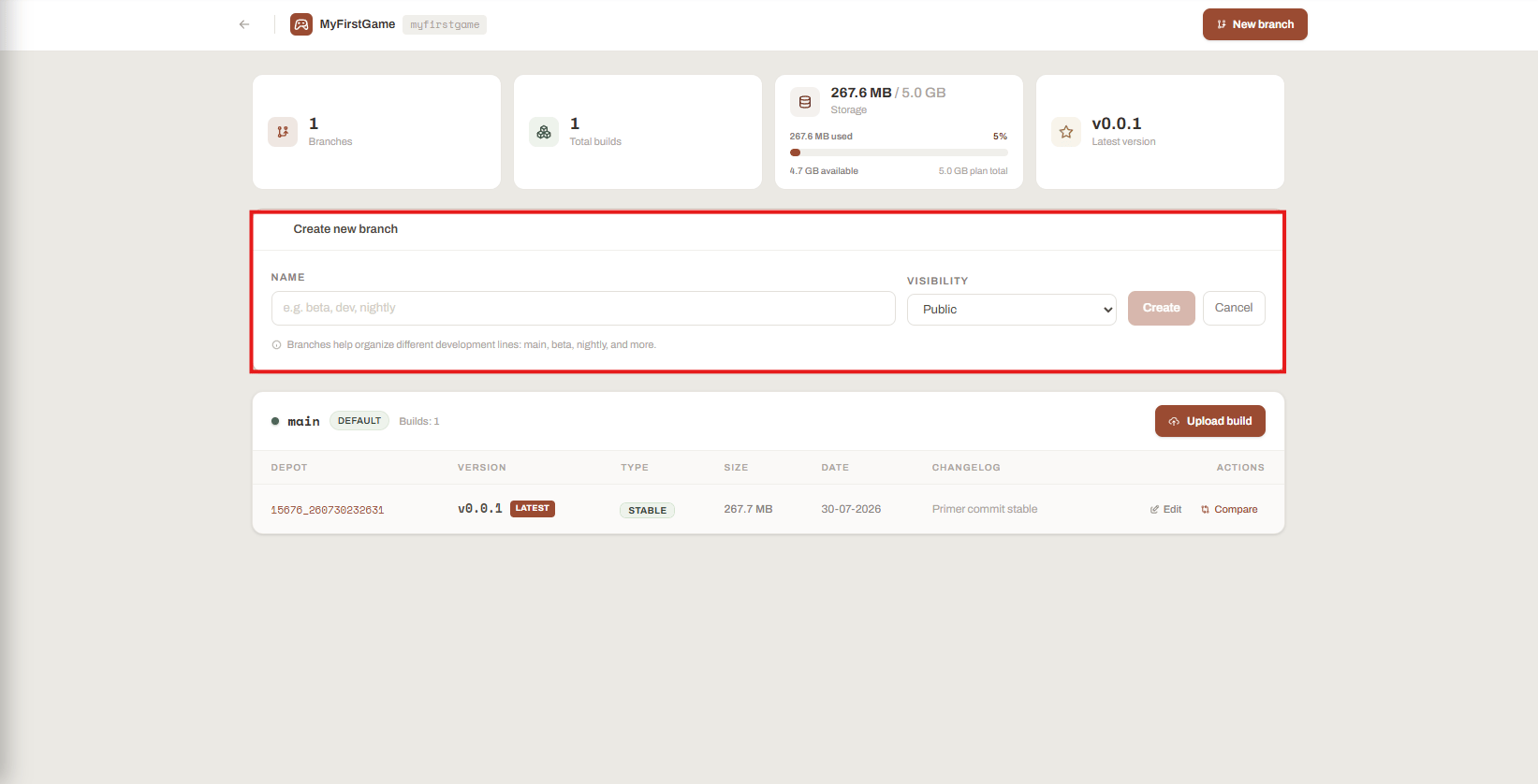
Create a public or private branch
Name
Enter a clear branch name. Examples:Visibility
Choose:- Public
- Private
Public branch behavior
A public branch participates in the normal launcher distribution flow. Players who already have access to the game can receive the builds published to that branch according to the launcher and release configuration. Typical uses:- Main production channel.
- Public beta.
- Demo channel.
- Early-access channel.
- Public test environment.
Private branch behavior
A private branch is restricted to invited launcher players. After creating it, the branch displays the PRIVATE badge and an Access action.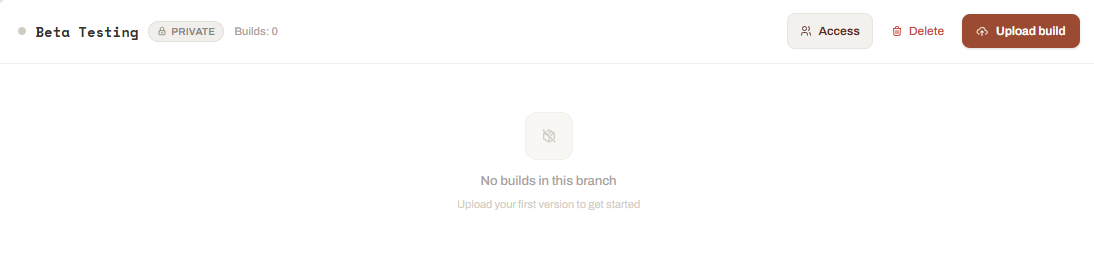
Review an empty private branch
Granting private branch access does not publish a build automatically. The branch must still receive a version through the CLI.
4. Grant access to a private branch
Select Access on the private branch. The Branch access dialog opens. Search for a registered launcher player by name or email, select the matching account, and choose Grant access.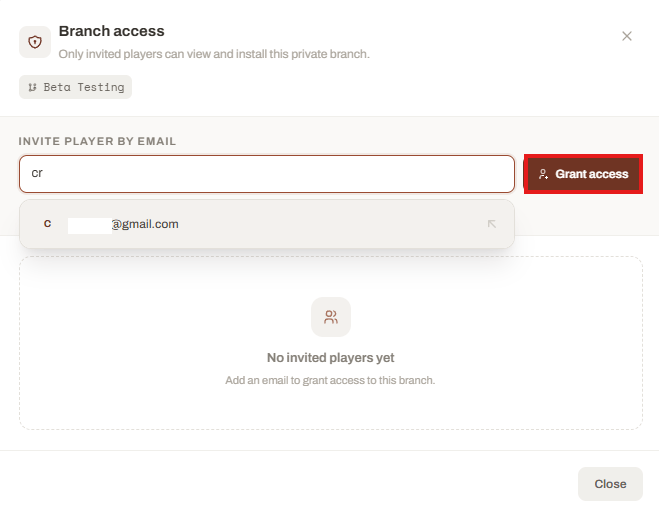
Search for a registered player and grant access
- The player appears under Authorized players.
- The access grant date is recorded.
- The player can view and install the private branch through the launcher.
- The developer can later revoke the assignment.
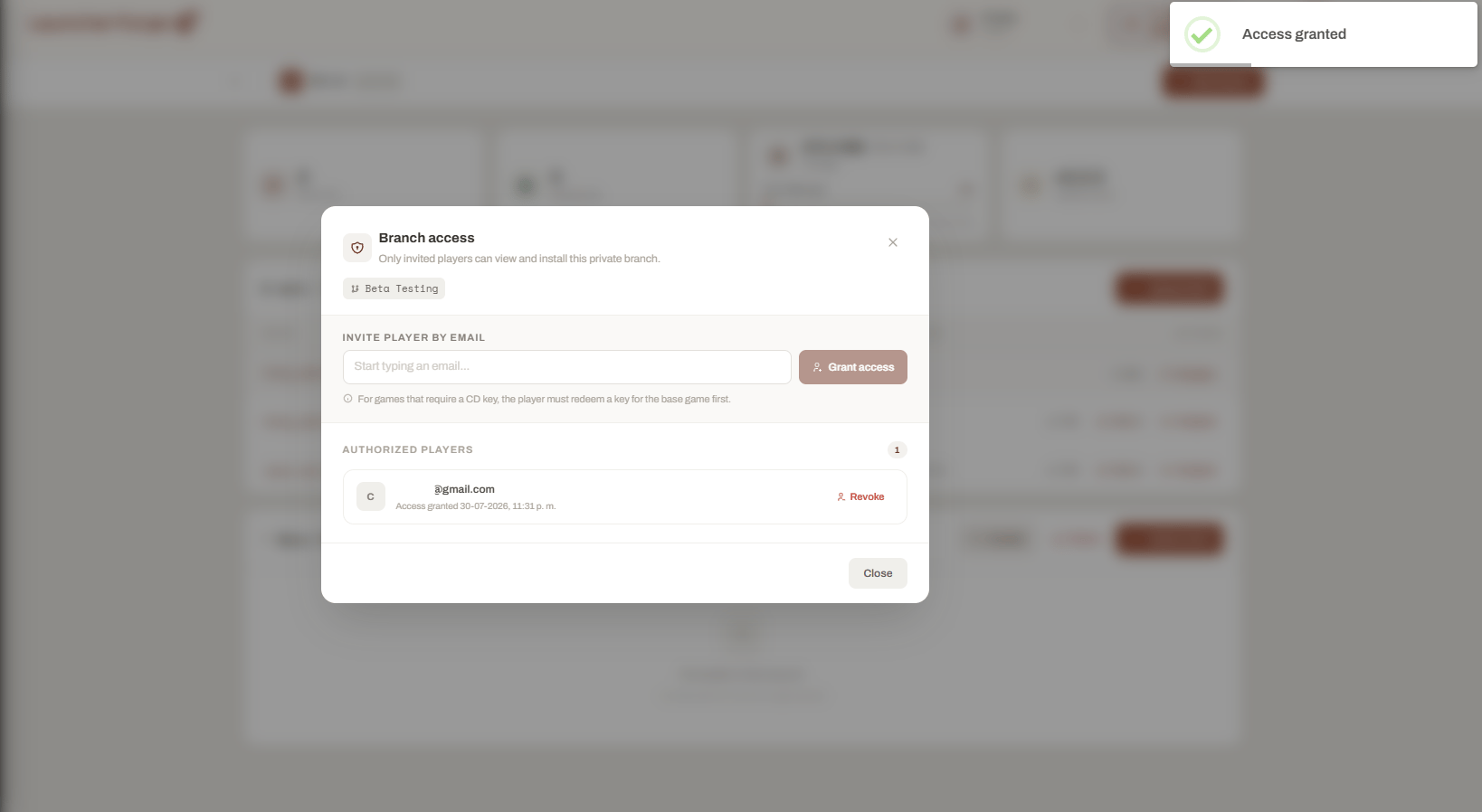
Review authorized players for the private branch
Revoke private branch access
Select Revoke next to an authorized player when that account should no longer use the private branch. Typical reasons include:- Closed test ended.
- Player left the QA group.
- Press preview access expired.
- Partner access was removed.
- Account should no longer receive internal builds.
5. Publish a build to a branch
Select Upload build from the target branch. Build publishing continues through the Launcher Forge interactive CLI. During the CLI flow, confirm:- Game.
- Destination branch.
- Version number.
- Release type.
- Changelog.
- Packaged build folder.
- Main executable.
Publish a build with the CLI
Review the complete interactive publishing workflow before uploading a version.
Branch build table
A branch with published versions displays a build table.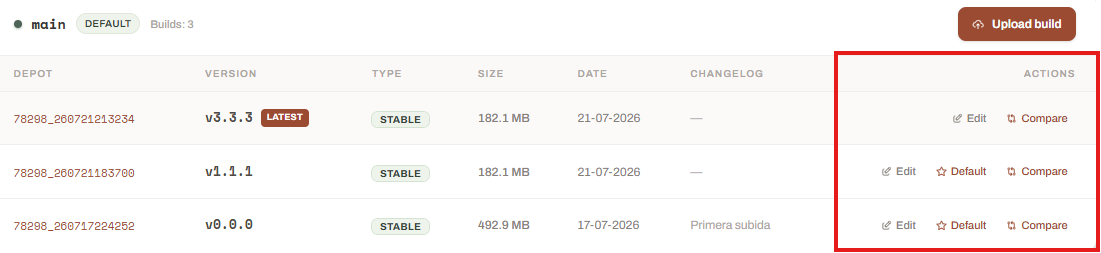
Review build actions inside a branch
The newest version can display the LATEST badge.
Edit a build
Select Edit when you need to update the changelog. The edit action only changes the version’s changelog or release notes. It does not replace:- Build files.
- Version number.
- Release type.
- Main executable.
- Branch.
- Generated manifest.
6. Compare builds
Select Compare on the build you want to review. Launcher Forge opens the comparison dialog and treats the selected version as the current build. Choose an earlier version as the Base build.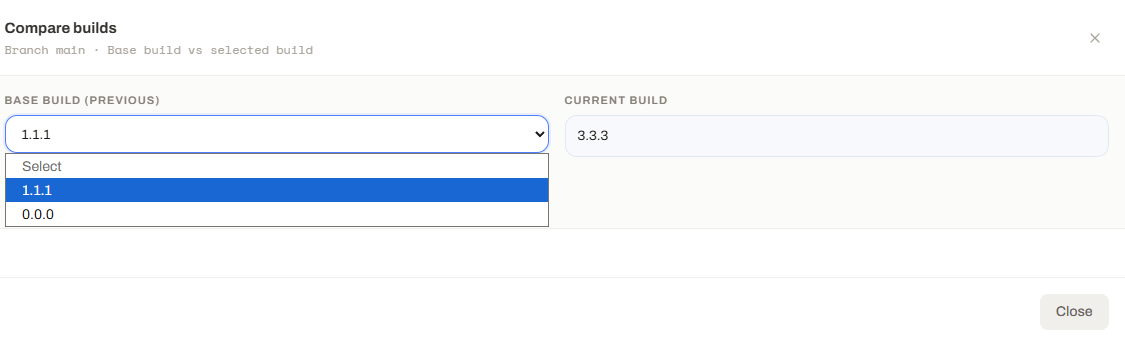
Select the previous version used as the comparison base
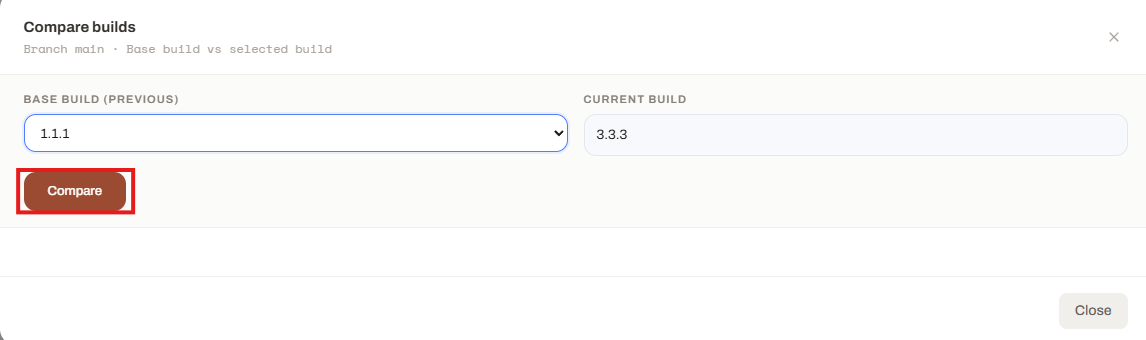
Start the build comparison
How comparison works
Launcher Forge compares the file manifests and hashes of both versions. Files are grouped into: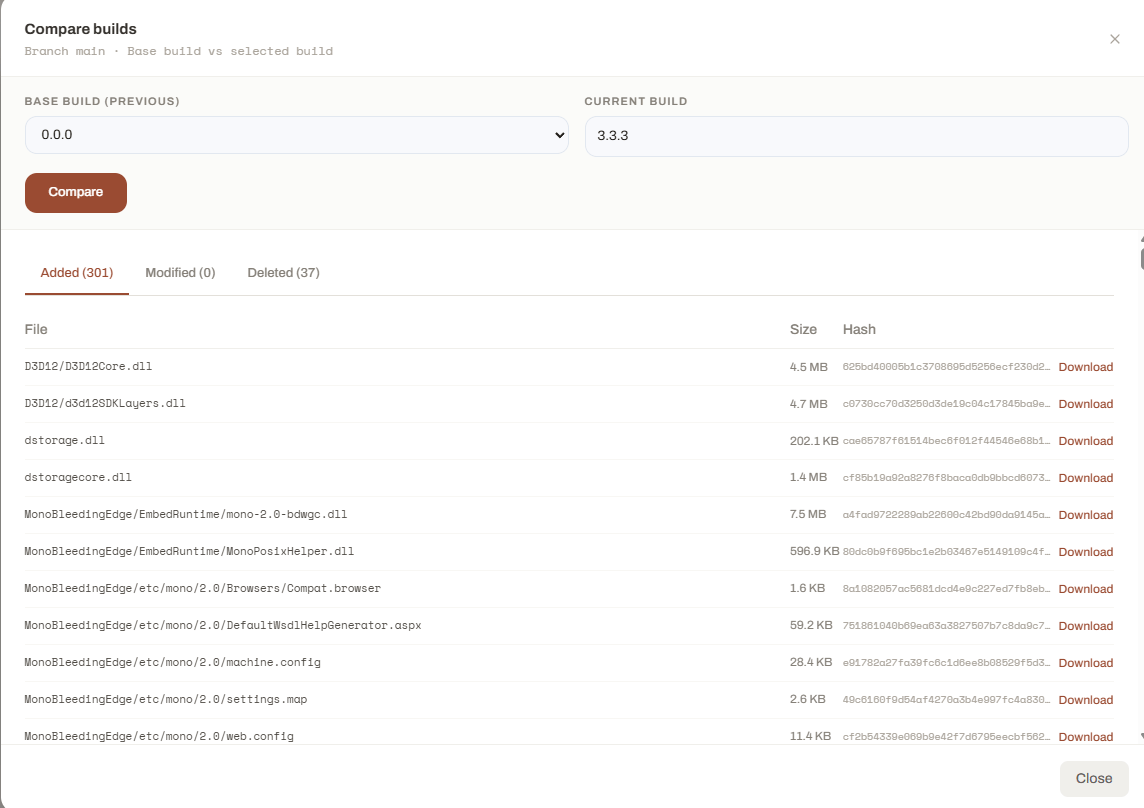
Review added, modified, and deleted files
- Relative file path.
- File size.
- Content hash.
- Download action, when available.
- Which files changed between releases.
- Whether a patch contains the expected files.
- Whether obsolete files were removed.
- Whether the packaged output changed unexpectedly.
- Whether two versions are suitable for further testing.
Comparison example
Delete a branch
Non-default branches can expose a Delete action when deletion is allowed. Before deleting a branch, verify:- It is not the required production channel.
- Its builds are no longer needed.
- No active testers depend on it.
- Authorized private players no longer need access.
- Important changelogs or comparison results were reviewed.
Recommended branch strategy
The exact structure depends on the size of the project and release process.
Verification checklist
Before using branches in production, verify:- The default branch is correct.
- Public and private visibility is configured intentionally.
- Private branch users are registered in the launcher.
- Key-protected players redeemed the base-game key first.
- Builds are published to the correct branch.
- Version numbers are unique for the selected branch.
- Changelogs accurately describe each release.
- Comparison results match the expected file changes.
- Private access is revoked when no longer required.
- Test builds are not published to the production branch.
Branch management is ready when each version is published to the intended channel and private builds are visible only to authorized launcher players.
Related guides
Publish a build
Publish a new version to a selected branch through the interactive CLI.
Player accounts
Review registered players, game access, and private branch assignments.
Game keys
Manage access for games configured to require CD keys.